

- Workshop chemistry
- Gear parts
- Engine parts
- Filters
- Cooling system
- Fuel system
- Hydraulic system
- Parts for electric forklifts
- Electrical part
- Drive parts
- Additional accessories
- Chassis components
- Wheels, rims, tyres
- Steering system
- Mast and arm components
- Braking system
- Ignition system
- Lighting
- Exhaust system
- Parts for crushers and screening plants
- Pallet trucks
- Electric pallet lift trucks
- Hand pallet trucks
- Electric platform lifts
- Electric pallet trucks spare parts
- New products
- Products on sale
Guide to using the 360° view
Dear Customers,
To make it easier for you to choose the right spare parts for your machines, we have prepared 360° view images of our products. Below, you will find a short guide to help you fully utilize this functionality and gain key information about the dimensions of the parts.
How to use the 360° product view?
1. Accessing the 360° view
On the product page, click the 360° icon. You can find it in two places: in the top-right corner of the product image and at the end of the product image preview. Clicking it will open the interactive 360° view.
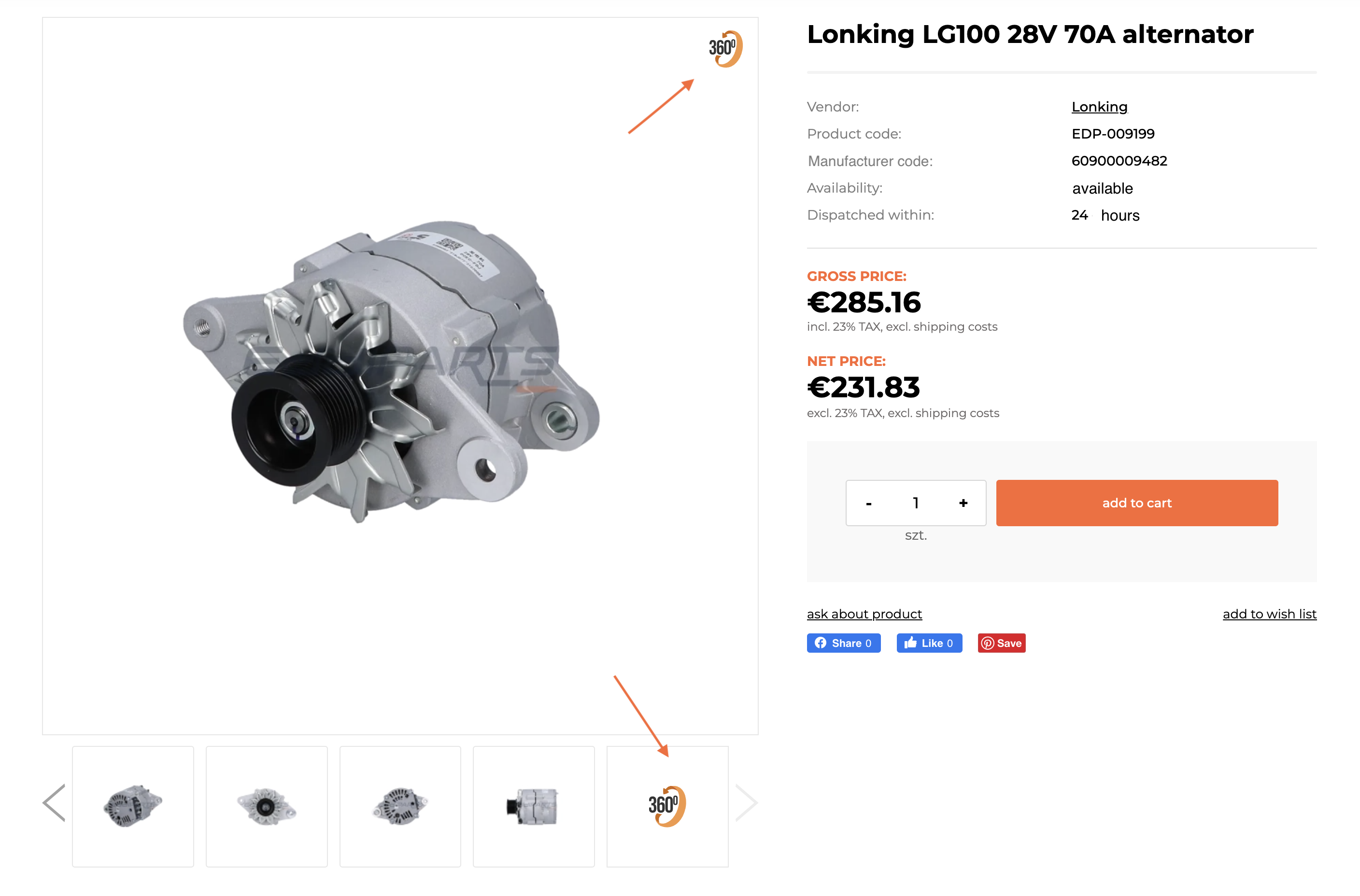
2. Navigation buttons
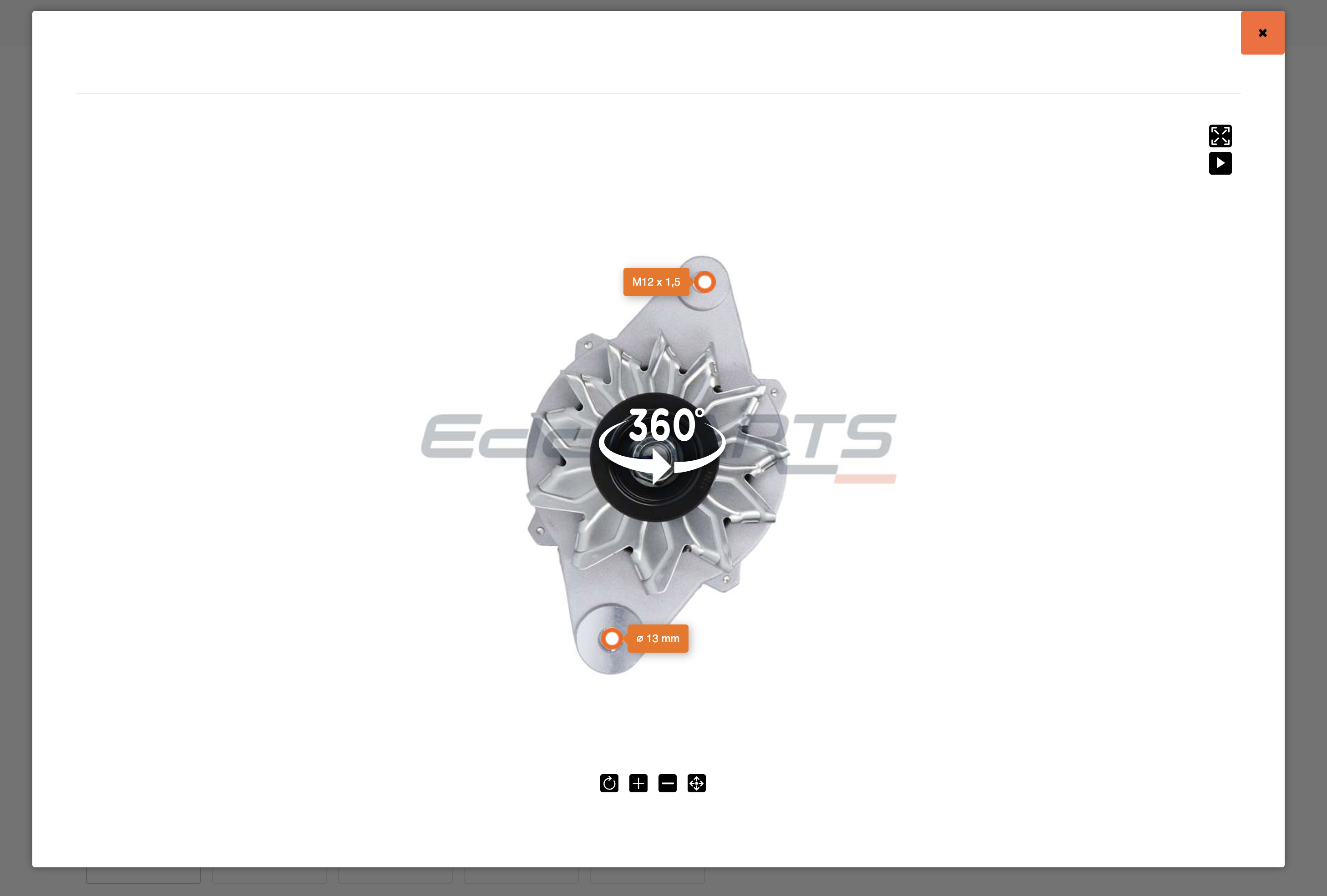
Horizontal navigation:

- AUTO ORBIT: Automatically rotates the product smoothly in all planes.
- ZOOM IN (+): Zooms in the image.
- ZOOM OUT (-): Zooms out the image.
- MOVE: Locks/unlocks the ability to rotate the product.
Vertical navigation:

- Fullscreen: Toggles the fullscreen view.
- Play/Pause: Automatically rotates the product and pauses at frames with specified dimensions (length, width, diameter, etc.).
3. Features
Rotating the product
To view the product from all angles, click on the product image and drag with your mouse or finger (on mobile devices) left or right. This rotation capability allows you to see all details of the viewed parts.
Zooming in on details
To zoom in and better see the details, use the zoom (+) button located below the image. You can also use the scrolling function to zoom in or out.
Fullscreen view
To view the product in fullscreen, click the crossed arrows icon in the top-right corner of the image. This provides a better view of the product details.
Why use the 360° view?
- Comprehensive product view: By rotating the product, you can see every detail, which is especially important when comparing dimensions or checking the technical specifications.
- Time-saving: Using the dimension markers on the images, you can easily verify if a part meets your requirements.
We encourage you to use this feature to select spare parts for your machines more quickly and conveniently!
The "360° view" feature is available on both computers and mobile devices. However, for the best experience, we recommend using it on a computer, as navigation on phones may be less intuitive.
If you have any questions, please contact us by phone or email — we are here to help.
Best regards,
The EddiPARTS Team